Agent usage examples
日本語: AGENT-SHOWCASE.md
Shared workflow · Image generation · X search · Switching agents
Shared workflow: edit and review a scene
Section titled “Shared workflow: edit and review a scene”Use chat to arrange or resize objects, apply materials and adjust lights.
| Claude Code | Codex | Grok Build | |
|---|---|---|---|
| Example | Add a light and resize an object | Arrange and color objects | Adjust light color and intensity |
| Screenshot (click to enlarge) |  |  |  |
Image-generation and search examples
Section titled “Image-generation and search examples”Image generation: create and apply materials
Section titled “Image generation: create and apply materials”Specify the material to generate and the objects to apply it to in chat.

Grok Build
Section titled “Grok Build”
X search: bring research into your scene
Section titled “X search: bring research into your scene”Tell Grok Build what to research on X and which parts of the scene to edit. It can use the search results to make those changes.

Switch agents in Settings
Section titled “Switch agents in Settings”- Open Settings > Agent and select the agent you want to use.
- If its CLI is missing, use Install in the same card.
- Sign in when required, confirm the connection and send your request.
Choose the agent in Settings; choose its model in the header.
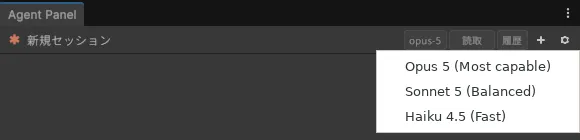
Setup and sign-in guide (Japanese) · Model selection (Japanese) · Installation
Other supported agents
Section titled “Other supported agents”Gemini CLI and other ACP-capable CLIs, such as Qwen Code and Kimi CLI, can also connect. See the user guide (Japanese) for Gemini CLI access requirements and manual configuration for other CLIs.