Layout and chat
Layout
Section titled “Layout”From top to bottom the panel contains the header (session name / model picker / history / + / ⚙), the banner (only while reconnecting, interrupted or on errors), the conversation log (messages, tool cards, permission cards), the context bar (chips such as the selected object and errors), the input box (Quick / + / send and stop) and the status bar (state / model / context % / tokens).
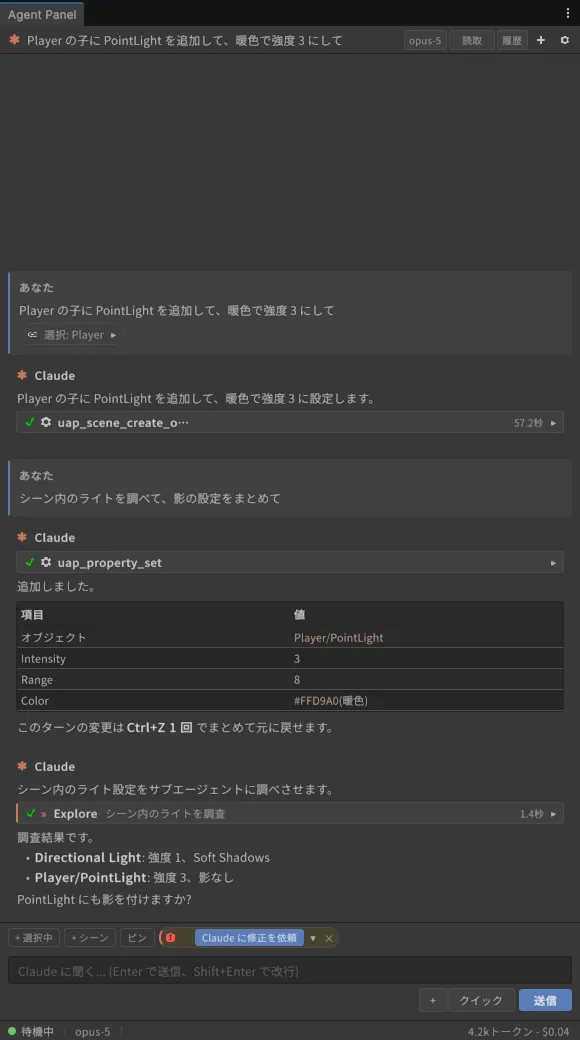
- Header: the current session name (default “New session”), the model picker, the “History” button, new session (+) and settings (⚙). When the panel is narrow, the model and the auto-approve level are combined into one menu.
- Status bar: the state (“Idle”, “Responding…”, “Running tool…”, “Waiting for permission” and so on), the model in use, the context window usage, and the cumulative tokens for this session (cost can also be shown in Settings). Click the token display to open the “Usage this session” popover with an input / output / cache breakdown.
Chat basics
Section titled “Chat basics”-
Type your request in the input box and press Enter to send (Shift+Enter for a new line). If confirming an IME conversion sends the message by accident, turn on “Send with Ctrl+Enter” under Settings > Agent > Conversation.
-
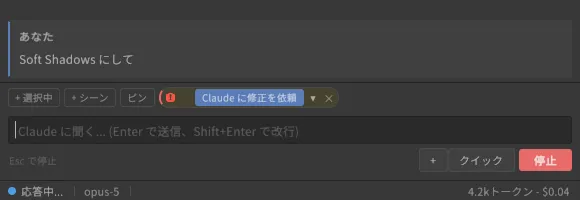
While a response is running, the send button becomes “Stop”. Click it or press Esc to interrupt the turn.
-
The input box stays usable during a response. Pressing Enter appends the message to the running turn (the hint under the input box reads “Enter sends into the running turn; Esc stops it”).
-
While Unity is compiling, messages are queued and sent after compilation finishes.
-
The Quick button inserts the prompt templates (quick actions) you registered in Settings. When the conversation is empty, the same quick actions appear as suggestions.
-
Markdown in responses (headings, lists, tables, code blocks) is rendered as-is. Code blocks have a copy button.
-
Assets/...paths in responses become links; clicking one highlights (pings) the asset in the Project window. -
Claude’s reasoning summary appears as a collapsible “Thinking” block (Settings > Panel > Display > “Show thinking blocks”).
Tool cards and subagent cards
Section titled “Tool cards and subagent cards”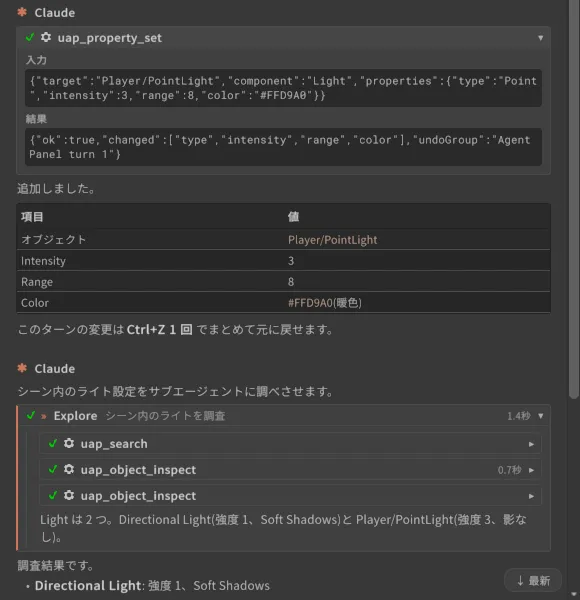
- Tool cards: tools the agent used (Read / Edit / Bash /
uap_*and so on) become one-line cards with a spinner while running, ✓ when done and ✗ on failure. Click to expand and see “Input”, “Result” and “Error”. Three or more completed cards in a row are grouped into a “N tools” row. - Images returned by a tool (editor screenshots, a PNG read, output of an image generation tool and so on) appear as thumbnails right under the tool card’s header. Click one to open it in the OS default app.
- Thumbnails are shown when the file named in the result actually exists, and when image data was embedded in the result (kept for 7 days in
Library/AgentPanel/Attachments). - Cards with images are not folded into the “N tools” group.
- Thumbnails are shown when the file named in the result actually exists, and when image data was embedded in the result (kept for 7 days in
- Subagent cards (Claude Code): when Claude starts a subagent with the Task tool, it appears as a nested card. Progress (running / done / failed) and the inner tool calls are shown only inside the card and do not mix into the parent conversation. Change the initial state with Settings > Panel > Display > “Expand subagent cards by default”.
- The expanded / collapsed state is kept when the conversation updates.
Slash commands and context compaction
Section titled “Slash commands and context compaction”-
Typing
/at the start of the input box opens a popup of commands provided by the CLI. Select with ↑↓, complete with Tab, send with Enter and close with Esc.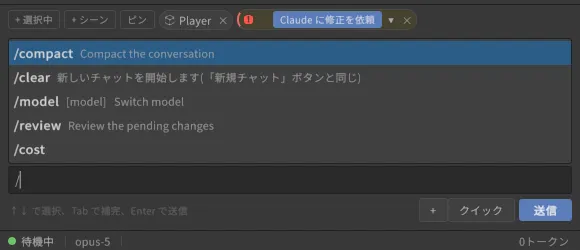
-
Sending
/compactmakes the CLI summarize the conversation so far, and a note with “manual / auto” and “tokens before compaction” is inserted at the compaction point in the conversation log. The same note appears when the CLI auto-compacts because the context is running out. -
Right after compaction, the status bar’s context meter reads “compacted” and returns to the real value once the next turn completes.
-
The meter turns to a warning color when little context is left. In long tasks, it helps to send
/compactat a natural break. -
/clearis handled inside the panel and behaves like starting a new session.