Signing in to Claude Code
This is the panel’s default agent. Signing in with a Claude subscription (Pro / Max, etc.) is recommended.
What you need: a Claude account (a subscription is recommended). To use an API key instead, set the environment variable ANTHROPIC_API_KEY.
1. Install the CLI
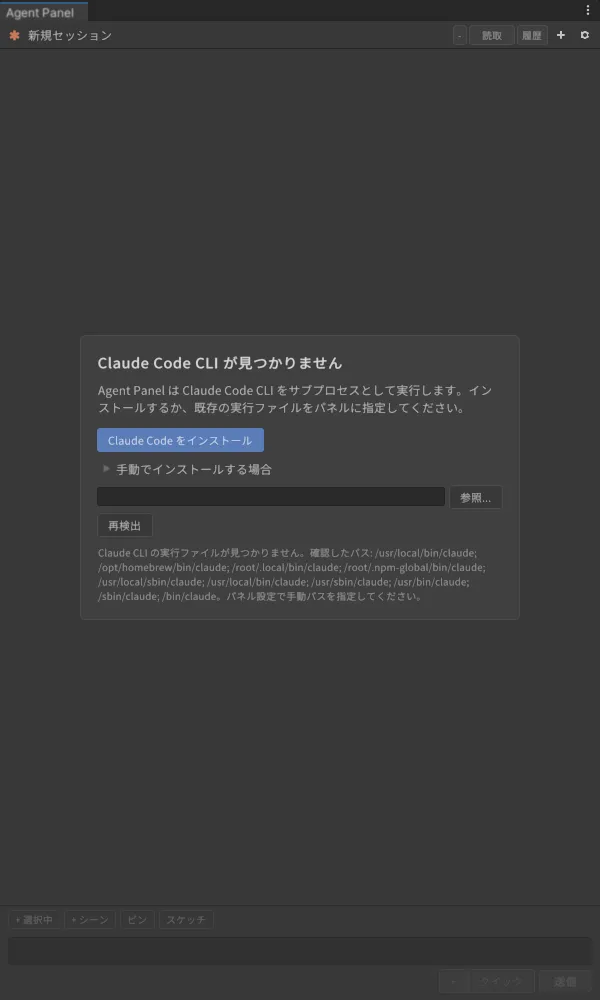
Section titled “1. Install the CLI”If the Claude Code CLI is not found when the panel opens, the chat area shows a “Claude Code CLI not found” card.
-
Press “Install Claude Code”. A confirmation dialog shows the command that will run. Press “Install” to start.
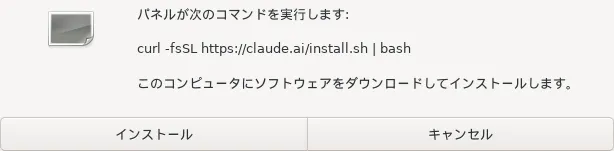
On Windows, the PowerShell installer (
irm https://claude.ai/install.ps1 | iex) is shown instead. -
If you installed it yourself, press “Re-detect”. If it is not in a standard location, press “Browse…” and point directly at
claude(claude.exeon Windows).
You can do the same from the Settings > Connection > Agent card. While installing, the card shows the elapsed seconds.
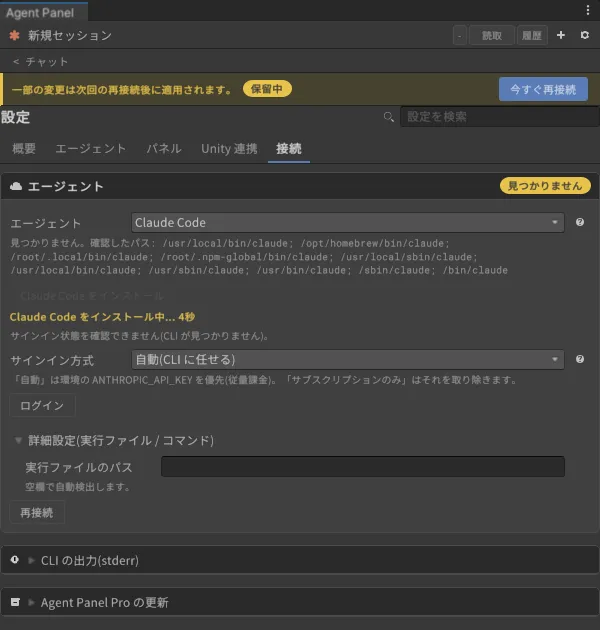
When it finishes, you see “Claude Code installed. Connecting…”, and the heading changes to “Not signed in”.
2. Sign in
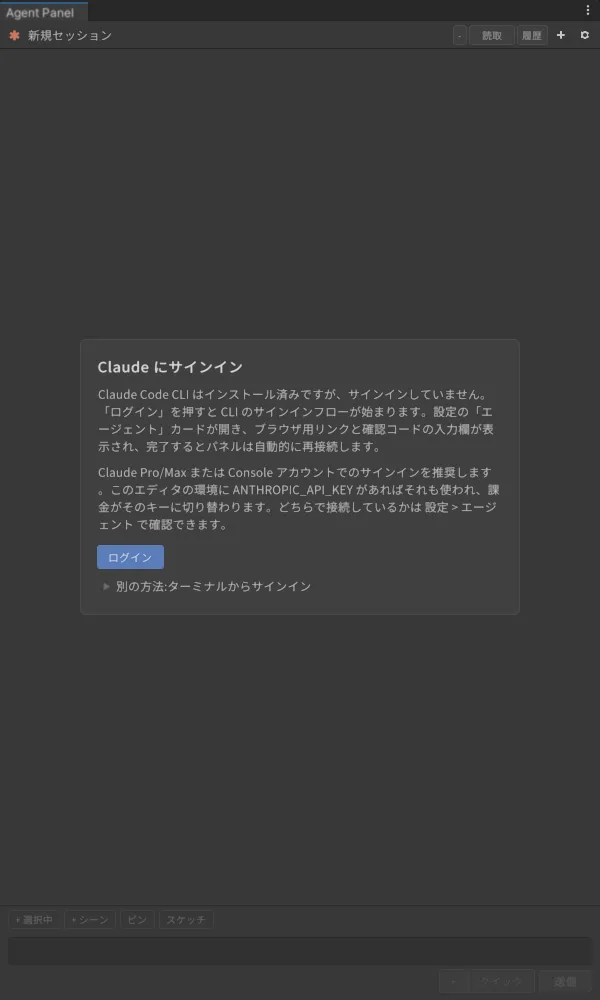
Section titled “2. Sign in”If the CLI is installed but you are not signed in, the chat area shows a “Sign in to Claude” card.
-
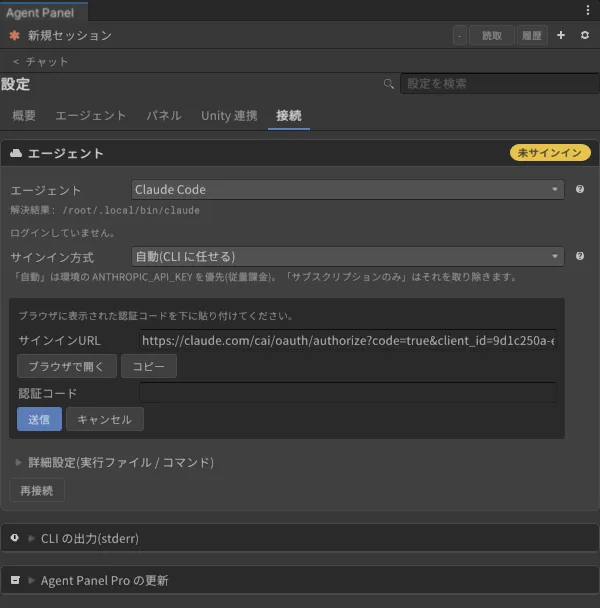
Press “Log in”. The Agent card in Settings opens and the panel runs
claude auth login. -
Your browser opens. If it does not, press “Open browser”, or paste the URL you “Copy”-ed into your browser.
-
Log in to your Claude account in the browser and allow access.
-
Copy the authorization code shown in the browser, paste it into the card’s “Authorization code” field, and press “Submit”.
-
When it completes, the heading becomes “Signed in” and your email address and plan are shown. The panel reconnects automatically.
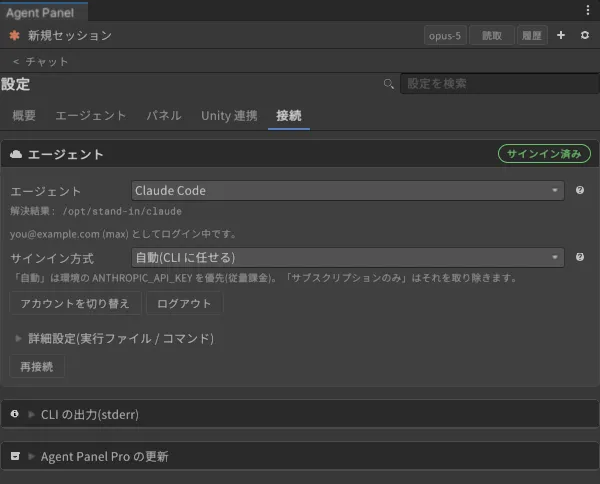
(This image was taken with a stand-in CLI used for screenshots. In practice “Resolved” shows the path to
claude, and the email address and plan are your own account’s.)
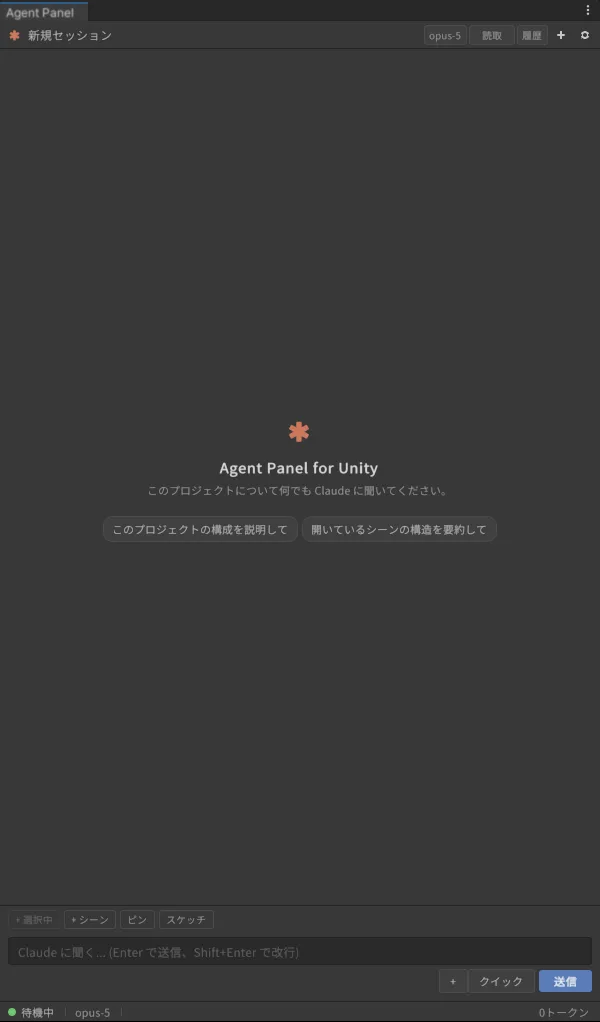
You are ready when the status bar reads “Idle” and the input box shows “Ask Claude…”.
Signing in from a terminal
Section titled “Signing in from a terminal”Open “Another way: sign in from a terminal” on the “Sign in to Claude” card to see the command to run. Start claude in a terminal and run /login. When you are done, press “Check again” on the card.
3. Sign-in method (subscription / API key)
Section titled “3. Sign-in method (subscription / API key)”If ANTHROPIC_API_KEY is set in the editor’s environment, the CLI itself decides to use it, and usage goes through the pay-as-you-go API. The method actually in use is shown under Settings > Connection > Agent.
| “Sign-in method” | Behavior |
|---|---|
| Auto (leave it to the CLI) (default) | Uses ANTHROPIC_API_KEY if it exists; otherwise uses the signed-in account |
| Subscription only | The panel does not pass ANTHROPIC_API_KEY to the CLI, so the signed-in account is always used |
Switching accounts and logging out
Section titled “Switching accounts and logging out”On the signed-in card, “Switch account” repeats the same steps with a different account. “Log out” deletes the CLI’s saved login after a confirmation.
When it does not work
Section titled “When it does not work”| Symptom | What to do |
|---|---|
| The “Authorization code” field stays disabled | Update the panel to v0.60.1-beta.6 or later. Earlier versions could not detect the wait for the code because the sign-in URL became longer in Claude Code 2.1.x. If you cannot update, use the steps under “Signing in from a terminal” above |
| “Login did not complete.” | The code was pasted wrongly or has expired. Start again from “Log in” |
| You signed in but are billed through an API key | Set “Sign-in method” to “Subscription only” |
A note about CLAUDE_CODE_OAUTH_TOKEN appears | The token from the environment variable is in use. Logging in or out does not affect that token |